How to Type Faster: A Simple Practice Plan for Students and Workers
Typing speed saves hours every week and shows up in many job tests. Learn what a good speed is, how to measure yours, and a four-week practice plan that works.

· 4 min read
Think about how much of your day goes into typing: assignments, emails, messages, forms, reports, CVs. If you type with two fingers while looking at the keys, every one of those tasks takes longer than it should. The good news is that typing is a skill, and it improves with a little practice each day.
Why typing speed matters
Faster typing gives you time back. An assignment that takes you two hours could take one and a half. Many office and data-entry jobs also test typing before an interview. Employers often want a minimum speed and a low number of mistakes, because corrections cost time.
How speed is measured
Speed is counted in words per minute, or WPM. A word is counted as five characters, including spaces. So if you type 300 correct characters in one minute, that is 60 words per minute. Accuracy is the share of what you typed that was correct.
As a rough guide, around 40 WPM is average for everyday work, and 60 or more is fast. Many people are comfortable and productive anywhere between 40 and 70.
Step one: find your starting point
You cannot improve what you have not measured. Open the Typing speed test, choose 30, 60 or 120 seconds, click the box and start typing the text shown. The timer begins with your first key. When it ends you will see your words per minute and your accuracy. Write the numbers down, and take the test again at the end of each week to see your progress. Your best score is saved in your own browser.
Get the setup right first
Sit up straight with your feet on the floor. Keep your wrists level and relaxed, not bent upwards. Place the screen at eye level if you can. If you are on a phone, use both thumbs and turn on predictions only if they really help.
Learn the home row
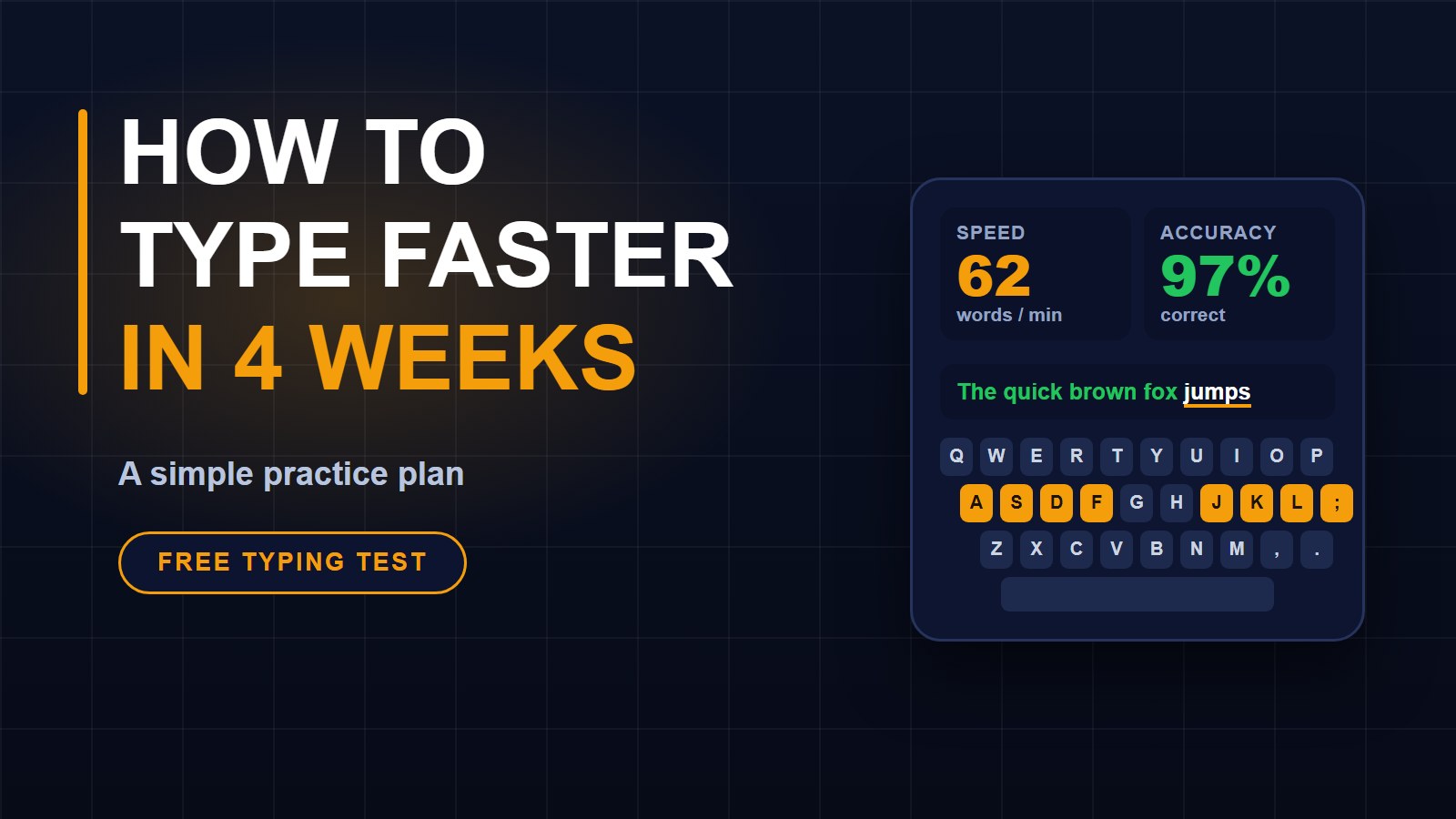
On a computer keyboard, rest your fingers on the home row: A S D F for your left hand and J K L ; for your right hand, with your thumbs on the space bar. Each finger is responsible for the keys around it, then returns to home. The small bumps on F and J help you find your place without looking.
At first this feels slower. That is normal. In two or three weeks it will pass your old speed.
A four-week practice plan
Week 1: Accuracy only. Type slowly and correctly, 10 minutes a day. Do not look at your hands. If you make a mistake, slow down.
Week 2: Add the whole alphabet and common words. Practise 10 to 15 minutes a day, and take a test at the end of the week.
Week 3: Start to push speed a little while keeping accuracy above 95%. Practise numbers and punctuation too, since forms and reports need them.
Week 4: Type real things: copy a paragraph from a book, write an email, or type up your class notes. Take the test again and compare it with week 1.
Habits that make the difference
Short daily sessions beat one long weekly one. Always put accuracy first; speed follows. Read a little ahead of what you are typing. Do not stare at your fingers. Rest your eyes and hands for a minute every 20 or 30 minutes. If your focus drifts, use the Pomodoro timer to practise in focused bursts.
Check your work too
Fast typing is no help if the text is full of mistakes. Read it through before you send it. The word counter shows how long a document is, and the text case converter can fix text that was typed with caps lock on.
Small steps, big results
You do not need special software or a lot of time. Fifteen minutes a day for a month can take many people from the hunt-and-peck habit to a steady, confident speed. Start today with a test, and see how far you can go. More free tools are on the tools page.
About the author
Francis Landford
Software Engineer | Creative Problem Solver | Innovative Software Solutions & Modern Applications
More about Francis Landford →


Discussion (0)
Sign in or create a free account to join the conversation.
No comments yet. Start the conversation.