JPG, PNG or WebP? How to Choose the Right Image Format
Picking the wrong image type makes files bigger, pages slower or logos blurry. Learn what JPG, PNG and WebP are best for, and how to convert, crop and resize a picture for free.

· 4 min read
You have a picture and you need to send it, upload it or put it on a website. The form says "JPG only." Your logo looks blurry after you saved it. A page loads slowly because of one huge photo. All of these come down to the same thing: image formats. They are easy to understand once you know what each one is for.
JPG: the everyday format for photos
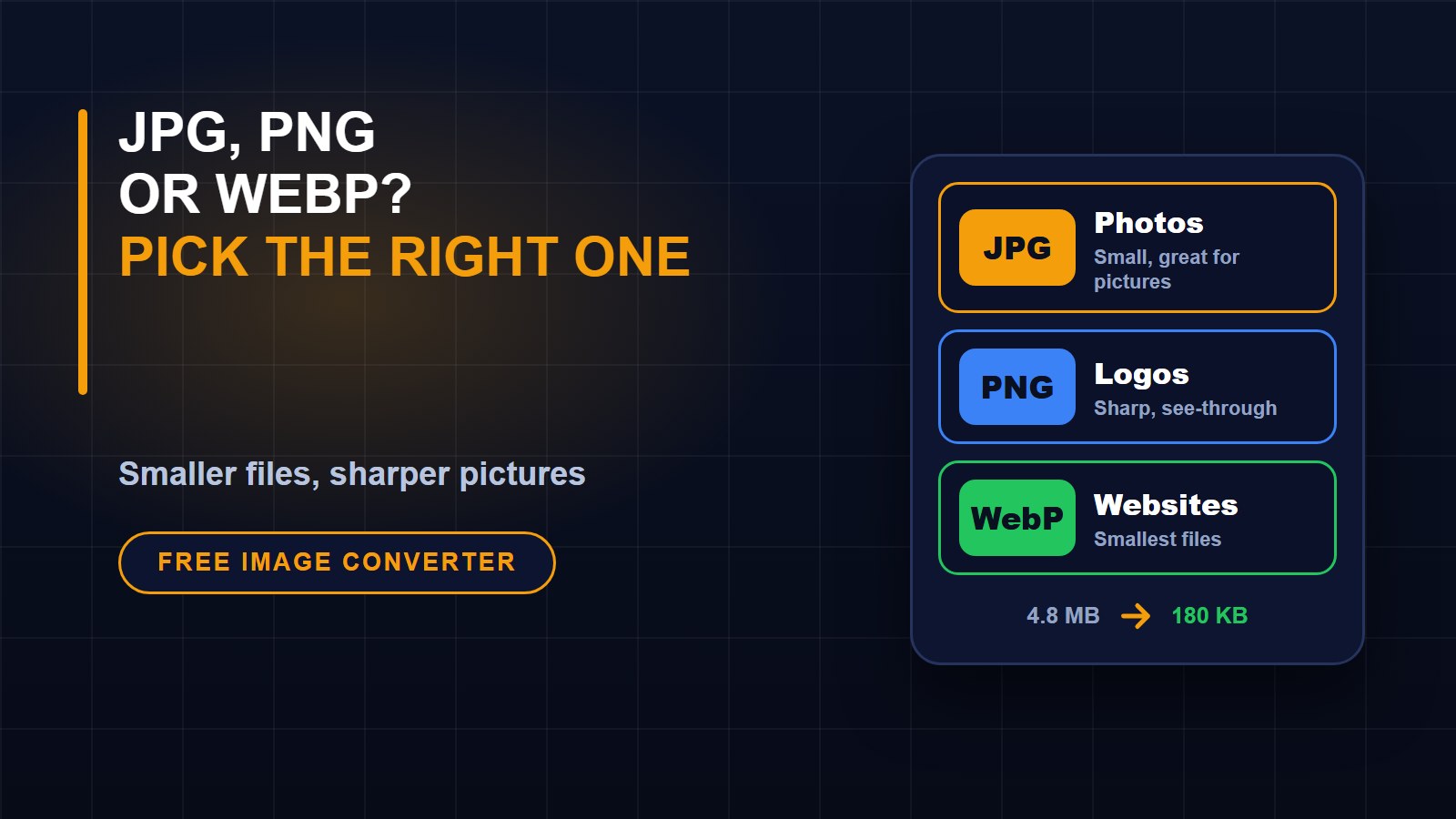
JPG, also written JPEG, is the best choice for photographs and pictures with many colours and soft shades. It makes files small by throwing away detail your eyes hardly notice. The more you compress, the smaller the file but the more the quality drops. Every time you save a JPG again, a little more quality is lost, so keep your original.
JPG cannot have a see-through background. If a picture has transparency, it gets a white background when saved as JPG.
PNG: sharp edges and see-through backgrounds
PNG keeps every detail exactly, so it is best for logos, icons, drawings, screenshots and text. It also supports a see-through background, which is perfect for putting a logo on a coloured page. The cost is that PNG files of photos can be very large. Do not use PNG for photographs unless you have a good reason.
WebP: smaller files for the web
WebP is a newer format that makes both photographs and graphics smaller than JPG or PNG at similar quality, and it also supports transparency. Modern browsers and phones can show it. If you run a website, WebP is a good way to make pages load faster. Some older programs and some upload forms still do not accept it, so keep a JPG copy as well.
A quick way to choose
Photo for a website: WebP, or JPG if WebP is not accepted. Photo for an online form or email: JPG. Logo or icon: PNG, or WebP if you want a smaller file. Screenshot or anything with text: PNG. A picture that needs a see-through background: PNG or WebP.
Pixels matter as much as format
A phone photo can be 4,000 pixels wide, but a website only shows it at about 1,200 or less. Sending the full size wastes data and slows the page. Resize the picture to the size you need before you upload it. For a full-width web image, around 1,600 pixels wide is usually plenty. For WhatsApp or a form, 800 to 1,200 pixels on the longest side is often enough.
How to convert and crop a picture
1. Open the Image converter and cropper and choose your picture.
2. Pick a crop shape, then drag the box and its round corners over the part you want to keep. There is a passport-style shape if you need one for an application form.
3. Rotate or flip the picture if needed.
4. Choose the file type (JPG, PNG or WebP) and the quality. If the file is too large, use "Make smaller" to set the longest side to 800 or 1200 pixels, and lower the quality a little.
5. Press "Create picture", then press the Download button.
Everything happens on your own device. Your pictures are not uploaded anywhere, which is important for ID photos and private images.
When you need an even smaller file
To shrink a picture quickly, use the Image compressor and resizer. If you want to understand the reasons behind slow pages, read our guide to why website images are too big and how to shrink them. Pictures that must be sent as documents can also be joined into a single file with the Image to PDF tool.
Common mistakes
Saving a photo as PNG and wondering why it is 5 MB. Saving a logo as JPG and getting a white box around it. Making a small image bigger, which only makes it blurry. Compressing the same JPG again and again. And uploading an original phone photo straight to a website.
Keep your originals
Always keep the original, full-size picture somewhere safe. Make copies for the web, for email and for forms. That way you can always go back and make a new version if you need one. You can find more free tools on the tools page.
About the author
Francis Landford
Software Engineer | Creative Problem Solver | Innovative Software Solutions & Modern Applications
More about Francis Landford →
Discussion (0)
Sign in or create a free account to join the conversation.
No comments yet. Start the conversation.