How to Back Up Your Phone: Photos, Contacts and WhatsApp Chats
Phones get lost, stolen, dropped and damaged. If yours disappeared today, what would you lose? Here is how to protect your photos, contacts and chats in less than half an hour.

· 4 min read
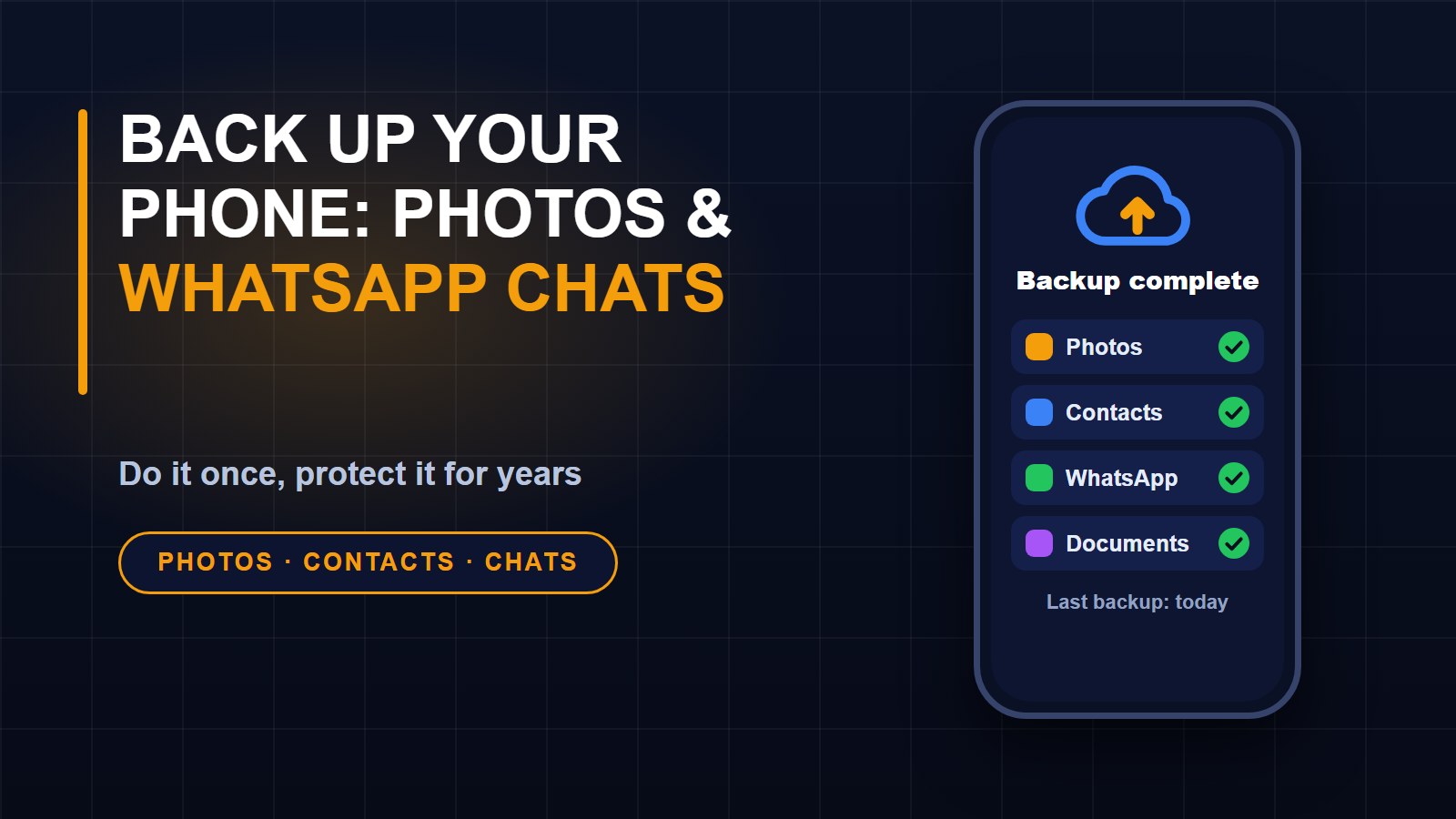
Phones are easy to lose and easy to break. They are also where many of us keep our most precious things: photos of family, contacts we cannot replace, school or business documents, and years of conversations. If your phone fell in water today, how much would you get back?
Most people only think about backups after something goes wrong. The good news is that setting one up takes less than half an hour, and after that it mostly looks after itself.
What should you back up?
Your photos and videos. Your contacts. Your messages and chats, especially WhatsApp. Important documents, such as scans of IDs and certificates. And your app data, where the app supports it.
Photos and videos
Both Android and iPhone can copy your photos to the cloud automatically. On Android this is usually done with Google Photos, and on iPhone with iCloud Photos. Open the app or the settings, turn on backup and choose to back up when you are on Wi-Fi, so you do not use your mobile data. Menu names are different on each phone, so look for "backup" or "sync" in the photo app's settings.
Free cloud storage is limited, so check how much you have. If it fills up, you can pay for more, or choose to back up at a slightly smaller size. You can also reduce the size of pictures yourself with the Image compressor and resizer before you store or send them.
Contacts
Make sure your contacts are saved to your account, not only to the phone or SIM card. On Android this means your Google account, and on iPhone it means iCloud. Then when you sign in on a new phone, your contacts come back. If you want a second copy, you can also export your contacts to a file.
WhatsApp chats
WhatsApp does not back up everything by default. Open WhatsApp, go to Settings, then Chats, then Chat backup. Choose how often to back up, and decide whether to include videos, which can be very large. Make sure you know which account the backup goes to. When you move to a new phone, install WhatsApp, verify your number and restore the backup when asked. Moving between Android and iPhone needs extra steps, so read WhatsApp's help pages before you switch.
Documents and important files
Keep a copy of important documents somewhere other than your phone: a cloud folder, a computer, or an external drive. Scanned papers should be saved as PDF files with clear names. Our guide on scanning documents with your phone shows how to do it well. Protect sensitive files, such as copies of your ID, in a folder that is not shared with everyone.
The 3-2-1 idea
A simple rule used by many professionals is to keep three copies of anything important, on two different kinds of storage, with one copy somewhere else. For you, that could be the original on your phone, a copy in the cloud, and a copy on a computer or drive at home. It sounds like a lot, but once the cloud backup is automatic, adding the third copy is only an occasional job.
Test your backup
A backup you have never checked might not work. Once in a while, open your cloud photos on a computer or a friend's phone and make sure the latest pictures are there. Look at the date of the last WhatsApp backup. If it is months old, something is wrong.
Protect the backup too
Your cloud account now holds your life, so protect it. Use a strong, unique password; the password strength checker can help you test one. Turn on two-step verification for your Google or Apple account. And do not share your login or codes with anyone. Our guide to how backups protect your business explains why this habit matters beyond your phone, too.
Before you sell or give away a phone
Back it up first, then sign out of your accounts and reset it to factory settings. This removes your personal information so the next owner cannot see it.
Do it today
Set a reminder for this weekend. Turn on photo backup, check your contacts, run a WhatsApp backup and copy your key documents. The next time your phone goes missing, you will be annoyed, but you will not be devastated. You can find more free tools on the tools page.
About the author
Francis Landford
Software Engineer | Creative Problem Solver | Innovative Software Solutions & Modern Applications
More about Francis Landford →


Discussion (0)
Sign in or create a free account to join the conversation.
No comments yet. Start the conversation.