How to Scan Documents With Your Phone and Turn Them Into One PDF
You do not need a scanner. Learn how to photograph your documents clearly, combine the photos into one tidy PDF, and make the file small enough to send.

· 4 min read
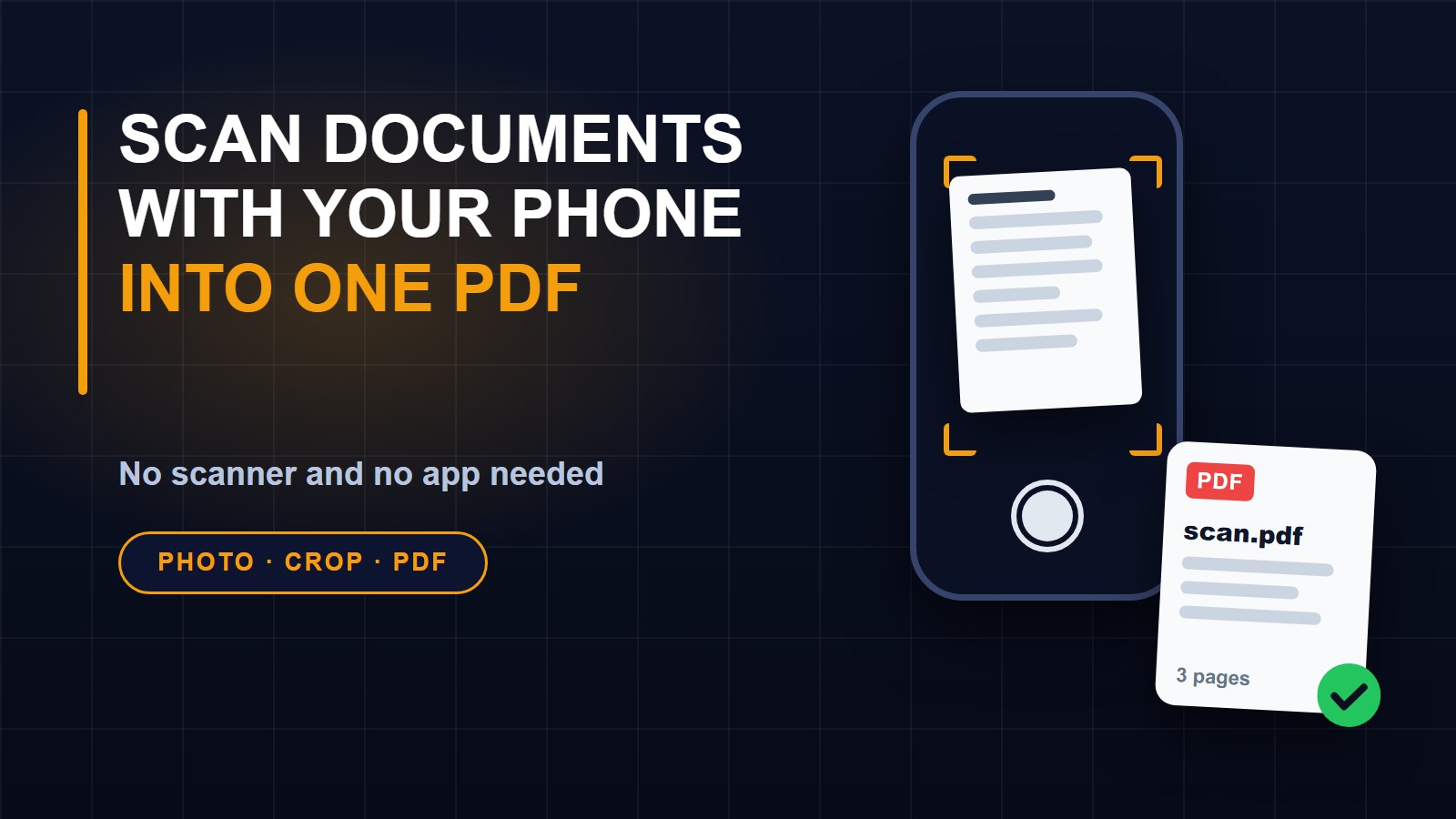
An office asks you to send a copy of your ID, a certificate and a letter, as a single PDF, by tonight. You have no scanner and no printer. But you do have a phone with a good camera, and that is enough.
Step one: take clear photos
The quality of your scan depends mostly on the photo. A few small habits make a big difference.
Use good light, such as near a window in the daytime. Avoid your own shadow falling on the page. Put the document on a plain, flat, dark surface so the edges are easy to see. Hold the phone straight above the page, not at an angle, so the page does not look like a trapezoid. Fill the frame, but keep all four corners visible. Tap the screen to focus, and check that you can read the smallest text before you move on.
Take one photo per page, in order. If a page has important details on both sides, photograph both.
Step two: crop the edges
Cropping removes the table and anything else around the page. Open the Image converter and cropper, choose a photo, and drag the box and its round corners over the page. You can also rotate the picture if it came out sideways. Choose JPG, then press "Create picture" and download it. Do this for each page, or skip this step if your photos are already neat.
Step three: combine the pictures into one PDF
1. Open the Image to PDF tool.
2. Press "Choose pictures", or drop your photos onto the box.
3. Use the arrows to put the pages in the right order. Each picture becomes one page.
4. Choose the page size, the margin and the quality. A4 is the usual size for most offices, and "Letter" is common in some countries.
5. Press "Create PDF", then "Download PDF".
Your photos stay on your own device while the PDF is made. That matters for ID cards, bank letters and certificates.
If your iPhone photo will not open, it may be saved in HEIC format. Share or export it as a JPG first, then add it again.
Step four: make it small enough to send
Photos can make a large PDF. Many forms and email systems have a limit, often 2 MB or 5 MB. If your file is too big, choose the Small quality before you create the PDF. Or open the Compress PDF tool, choose the file, and pick Strong for the biggest saving, then Balanced, or Smallest if you still need it smaller. You will see the old and new size so you know when you are under the limit. Strong turns each page into a picture, so the text can no longer be selected, which is fine for a scan.
Need to join PDFs you already have?
If you have one PDF with your ID and another with your certificate, the Merge PDF tool combines them. Our guide on merging PDF files for free shows the steps, and the guide on making a PDF or photo smaller has more tips for size limits.
Need to sign it?
Many forms also need a signature. The Edit PDF tool lets you draw your signature and place it on the page, so you do not have to print anything.
Good habits for scanned documents
Name each file clearly, for example "Passport-scan.pdf" and not "IMG_2041.pdf". Check every page once the PDF is made: is it readable, in the right order, and not cut off? Keep the original paper safe. Delete scans of sensitive documents from your phone and from any chat apps once they are sent, and be careful about who you send them to. Never send ID documents to someone you do not know, even if they promise a job or a prize.
It takes five minutes
Once you have done it once, you will find it quick. A phone, a window and a browser are all you need. You can find more free tools on the tools page.
About the author
Francis Landford
Software Engineer | Creative Problem Solver | Innovative Software Solutions & Modern Applications
More about Francis Landford →
Discussion (0)
Sign in or create a free account to join the conversation.
No comments yet. Start the conversation.