Two-Step Verification: The Easiest Way to Protect Your Accounts
A strong password can still be stolen. Two-step verification adds a second lock that attackers usually cannot open. Here is how it works, which type to choose and how to set it up.

· 4 min read
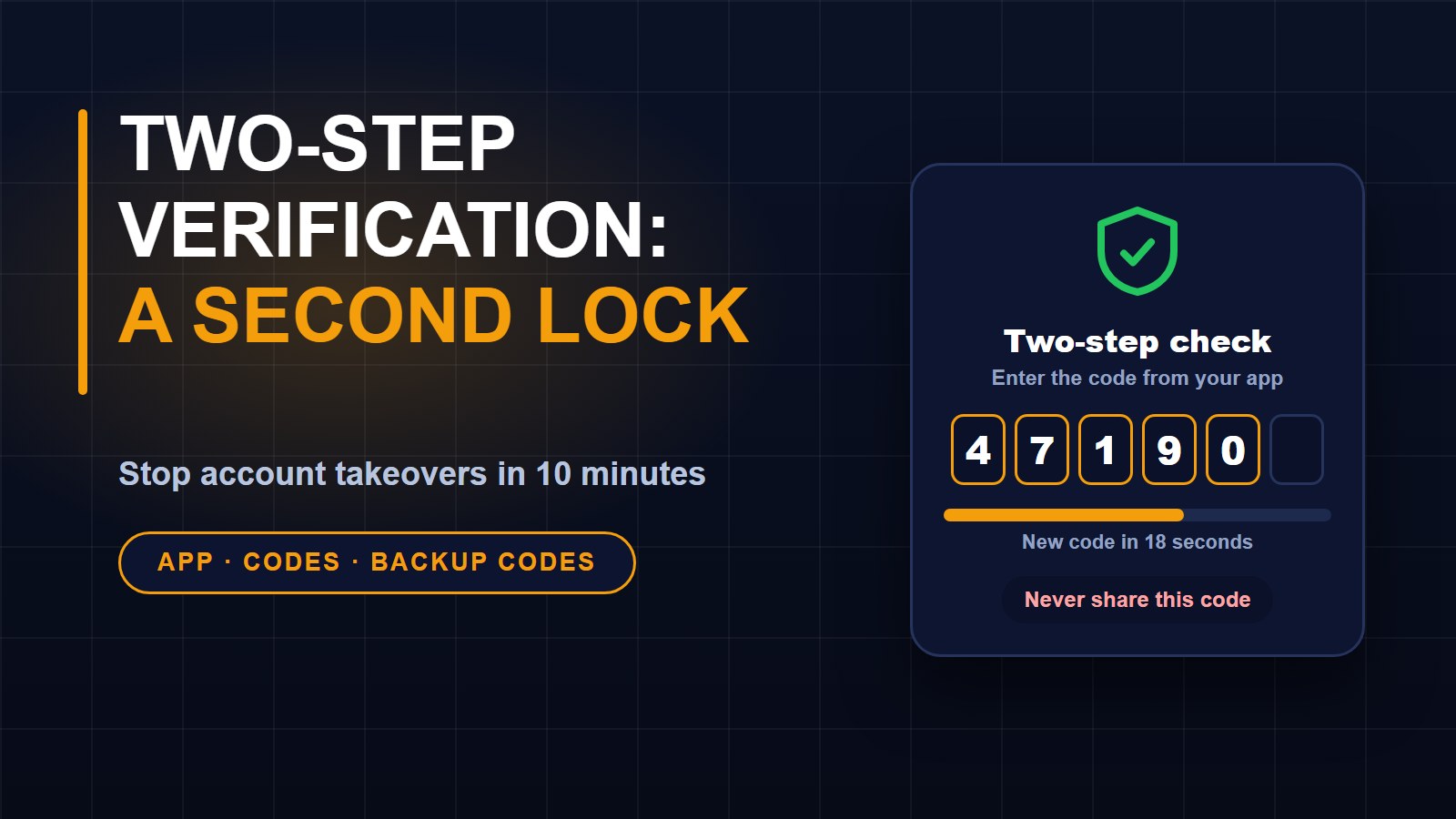
Most of what matters in your online life sits behind a password: your email, your social media, your mobile money, your school or work accounts. Passwords leak, get guessed, or are tricked out of people. When that happens, a stranger can walk straight in. Two-step verification is the simple extra lock that stops this.
What it is
With two-step verification, also called two-factor authentication or 2FA, a password alone is not enough to sign in. After you enter it, you must prove who you are a second way, for example with a code from your phone. An attacker who has your password but not your phone is stopped at the door.
Why it matters
Passwords are stolen all the time through fake login pages, data leaks from other websites, and people reusing the same password in many places. Two-step verification is one of the most effective protections you can switch on, and it is usually free. It takes a few minutes to set up.
The types, from best to simplest
Authenticator app. An app on your phone creates a new six-digit code every 30 seconds. It does not need a network signal, which is helpful when coverage is poor. This is usually the best choice.
Security key. A small physical device you plug in or tap. Very strong, and used by people with high-risk accounts.
Text message code. A code arrives by SMS. It is better than nothing and easy to use, but it can be intercepted if someone takes over your phone number, so use an app when you can.
Approval on another device. Some services send a prompt to your phone asking "Is this you?" Only approve it if you really just tried to sign in.
Which accounts to protect first
Start with your main email account, because it can be used to reset the passwords of everything else. Then your Facebook and other social accounts, your Google or Apple account, your mobile money and banking apps, and your online shops and work accounts. Our guide to keeping your Facebook account safe covers the other risks to check there.
How to turn it on
Menu names differ from one service to another, but the steps are almost always the same.
1. Sign in and open Settings, then look for Security, Password and security, or Login.
2. Find "Two-step verification", "Two-factor authentication" or "2-step login" and choose to turn it on.
3. Pick your method. If you can, choose an authenticator app, install one from your phone's official app store, and scan the code shown on screen.
4. Type the first code the app gives you to confirm it works.
5. Save your backup codes. These are one-time codes for when you lose your phone. Write them down or print them and keep them somewhere safe, not in the same phone.
WhatsApp has a separate feature, also called two-step verification, which asks for a six-digit PIN when you register your number on a new phone. Turn it on in Settings, then Account, then Two-step verification, and add an email address so you can reset the PIN if you forget it. It is one of the best protections against WhatsApp account theft, which is covered in our guide to mobile money and WhatsApp scams.
Never share your codes
Two-step verification only works if the codes stay secret. A common trick is a message that says "I accidentally sent you a code, please send it back." That code is the key to your account. No real company will ever ask you for it. Do not read it out or type it into a link that someone sent you.
If you lose your phone
Use your backup codes to sign in, then set up two-step verification again on the new phone. If you cannot sign in, use the service's account recovery option as soon as you can. This is another reason to keep a recovery email and phone number up to date.
Do not forget the password
Two-step verification adds protection but does not replace a good password. Use a long, unique one for every important account. Our guide on creating a password you can remember shows how, and the free password strength checker tests it on your device without sending it anywhere.
Ten minutes, a lot of safety
Pick your email account today and turn it on. Then do one more account each day this week. The small effort now can save you from the stress of a stolen account later. You can find more free tools on the tools page.
About the author
Francis Landford
Software Engineer | Creative Problem Solver | Innovative Software Solutions & Modern Applications
More about Francis Landford →

Discussion (0)
Sign in or create a free account to join the conversation.
No comments yet. Start the conversation.