A White-Label Mobile App for Your Streaming Service: How It Works
The companion app for my Streaming Platform is a Flutter project for Android and iOS. This post explains how it connects to your website, what you control from the admin, how offline downloads work, and what app store rules mean for payments.

· 5 min read
A website is no longer enough for a streaming service. Many viewers expect an app on their phone, with their profile ready and the show they were watching one tap away. So I built a mobile app to go with my Streaming Platform. It is a Flutter project, which means one codebase produces both an Android app and an iOS app. This post explains how it works and what you decide when you use it.
An app that talks to your platform
The app has no server of its own. It connects to your Streaming Platform installation over a mobile interface that version 1.1.0 of the platform added. Subscribers sign in with the same email and password they use on your website, choose a profile, and see the same catalog.
That design has a useful consequence. Everything you already manage on the website applies to the app too: your catalog, your plans, your maturity ratings, your prices. There is no second system to keep in step.
What viewers can do
The app follows the structure of the website's home page: a featured title, Continue Watching, personal picks, trending titles, genres, collections and search. A title page shows the seasons and episodes, how far the viewer has watched, and a button to add it to My List. Profile PINs and kids profiles behave exactly as they do on the website.
Playback is full screen and adapts to the connection. Viewers can resume, turn subtitles on, jump back or forward ten seconds, and see a countdown to the next episode.
Branding without rebuilding
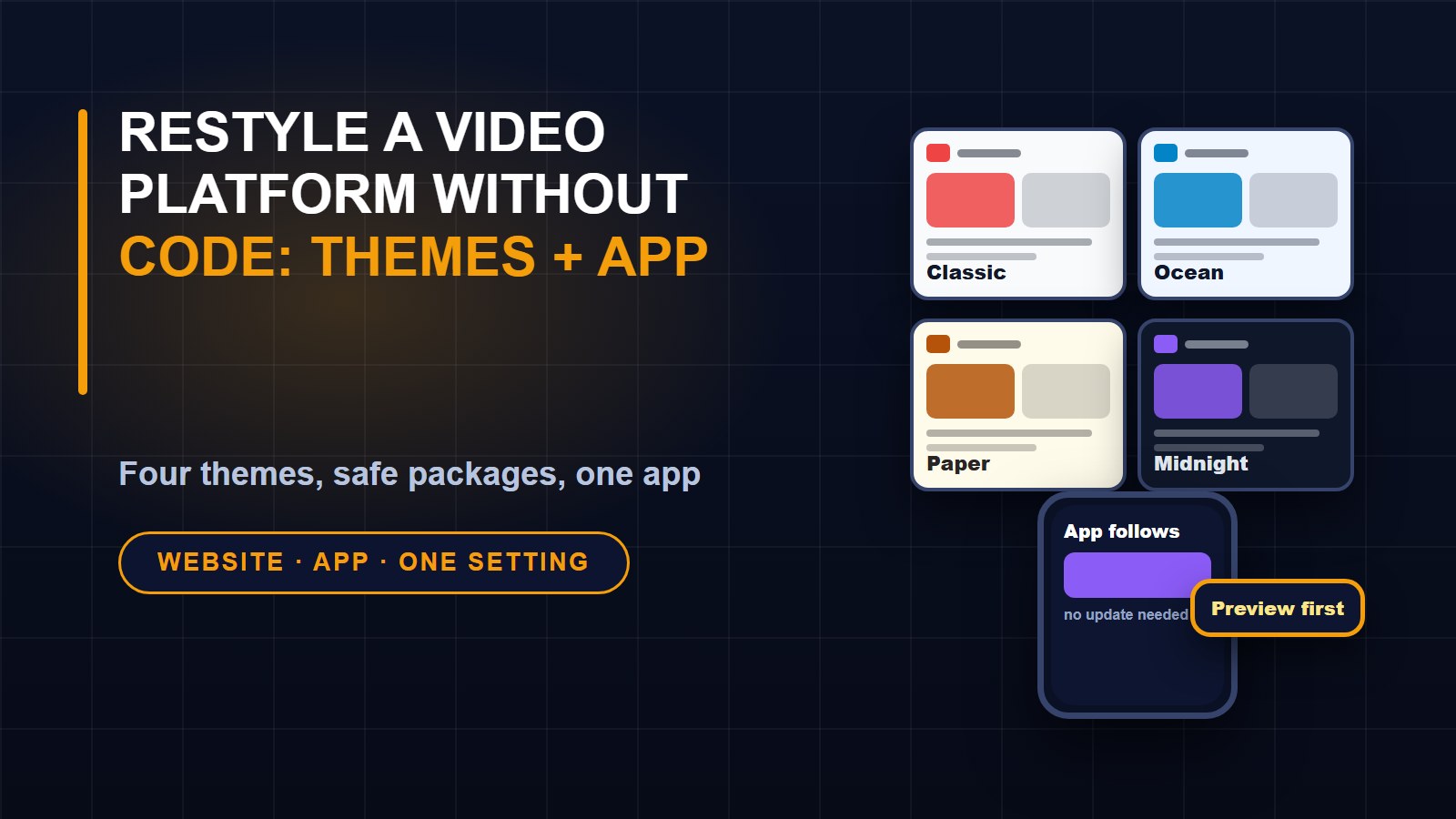
Your platform name, logo and colour are loaded from your website's branding settings when the app starts. If you change the colour in your admin, the app follows. What you do set when you build the app is your platform's address, a fallback name shown before branding has loaded, your own app id, your icon and your store listing. The included guide takes you through each of those.
Offline downloads, and the one switch
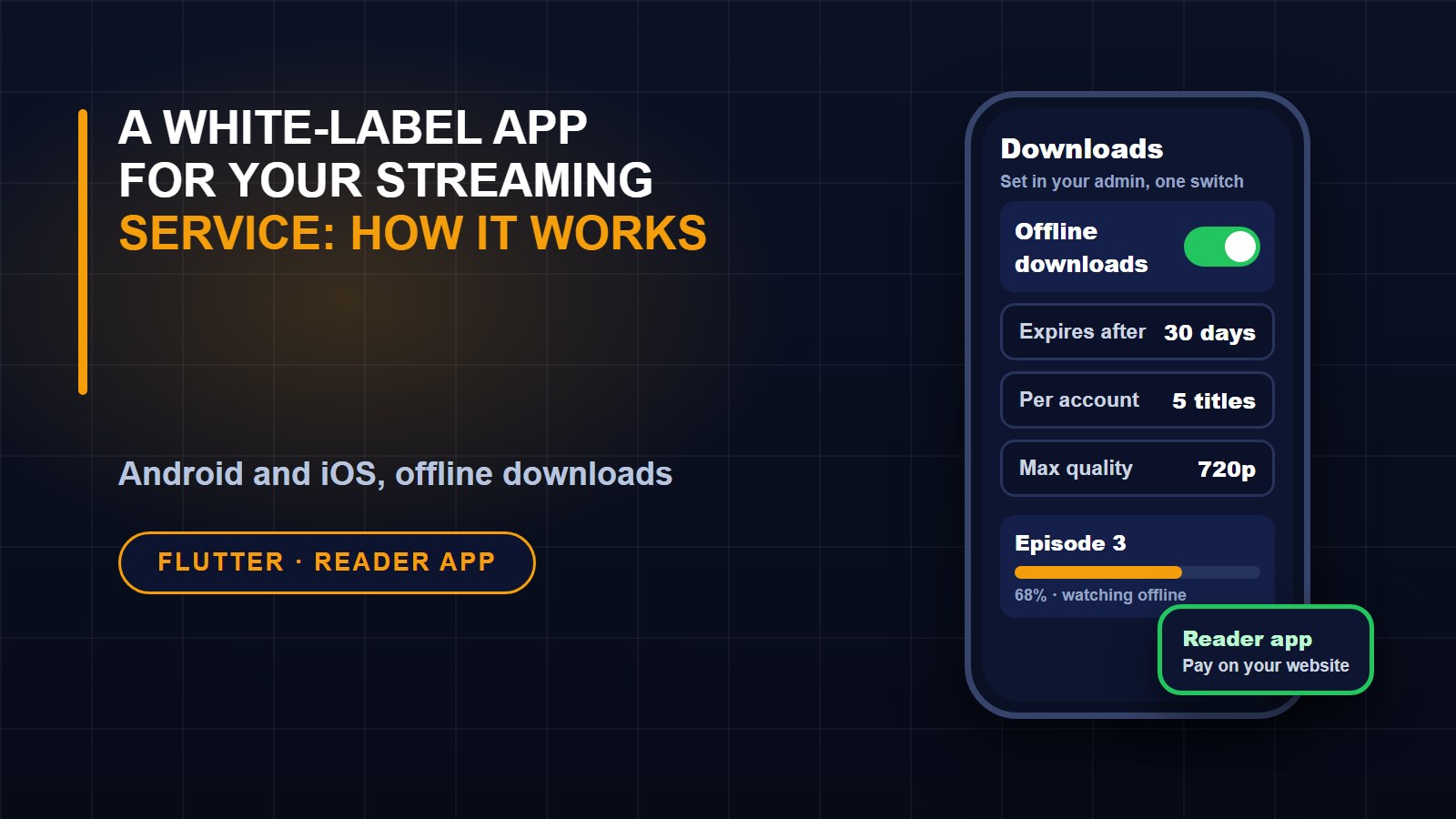
Viewers often want to watch on a train or a bus with no signal. The app supports downloading films and episodes, but only if you allow it. In the platform settings there is one switch for downloads, plus an expiry in days, a limit per account and a maximum quality. If you switch downloads off, the files are removed from phones the next time the app connects. Progress that someone watches offline is sent back to your platform when they reconnect, so Continue Watching stays right.
An honest note about this feature: downloads are kept in the app's private storage and expire automatically, but they are not protected by DRM. If your licence agreements with content owners require DRM, keep downloads switched off.
Your plans still apply
Limits are enforced by your server, not by the app. If a plan allows two screens at once or a maximum of HD quality, the server refuses anything beyond that, in the app exactly as on the website. Nobody can change the app to get around a limit, because the check does not live in the app.
Sign-in security
When someone signs in, the app receives a secure token. That token stops working when the person signs out, changes their password, has their account suspended or deleted, or when you use the Sign out everywhere tool. The app keeps its token in secure storage on the phone.
Why subscribers pay on your website
This is the part that surprises many people, so it is worth a clear explanation. Apple and Google generally require that digital subscriptions sold inside an app use their own payment systems, and they take a commission. The way around that is the approach this app takes: it is a reader app. It never sells anything inside the app. Subscribers sign up and pay on your website, with Stripe, PayPal, MTN Mobile Money or Orange Money, then sign in to the app.
By default the app shows your website's address as plain text instead of a tappable link. If you distribute the Android app yourself as a downloadable file, you can switch on tappable links with a build option. On iOS, the app never shows billing links. App stores decide what they approve, so I cannot promise approval, and the guide explains what reviewers expect, such as a test account with an active plan and a way to delete an account.
What you need
1. A working Streaming Platform 1.1.0 or newer on HTTPS.
2. Flutter 3.35 or newer on your computer to build the app, with Android Studio for Android.
3. For iOS, a Mac with Xcode.
4. Your own Google Play and Apple Developer accounts, which are paid by you.
I tested the app on real Android phones, including using downloads with no connection.
Licences
A single licence covers one published app, one brand, on Android and iOS. An extended licence covers up to five. Private test builds are unlimited, and both licences include six months of updates and email support. The source code may not be resold.
Where to read more
The full description, screenshots and both licences are on the Streaming Platform Mobile App page. The app needs the platform to work, so look at the platform first if you do not have it yet.
About the author
Francis Landford
Software Engineer | Creative Problem Solver | Innovative Software Solutions & Modern Applications
More about Francis Landford →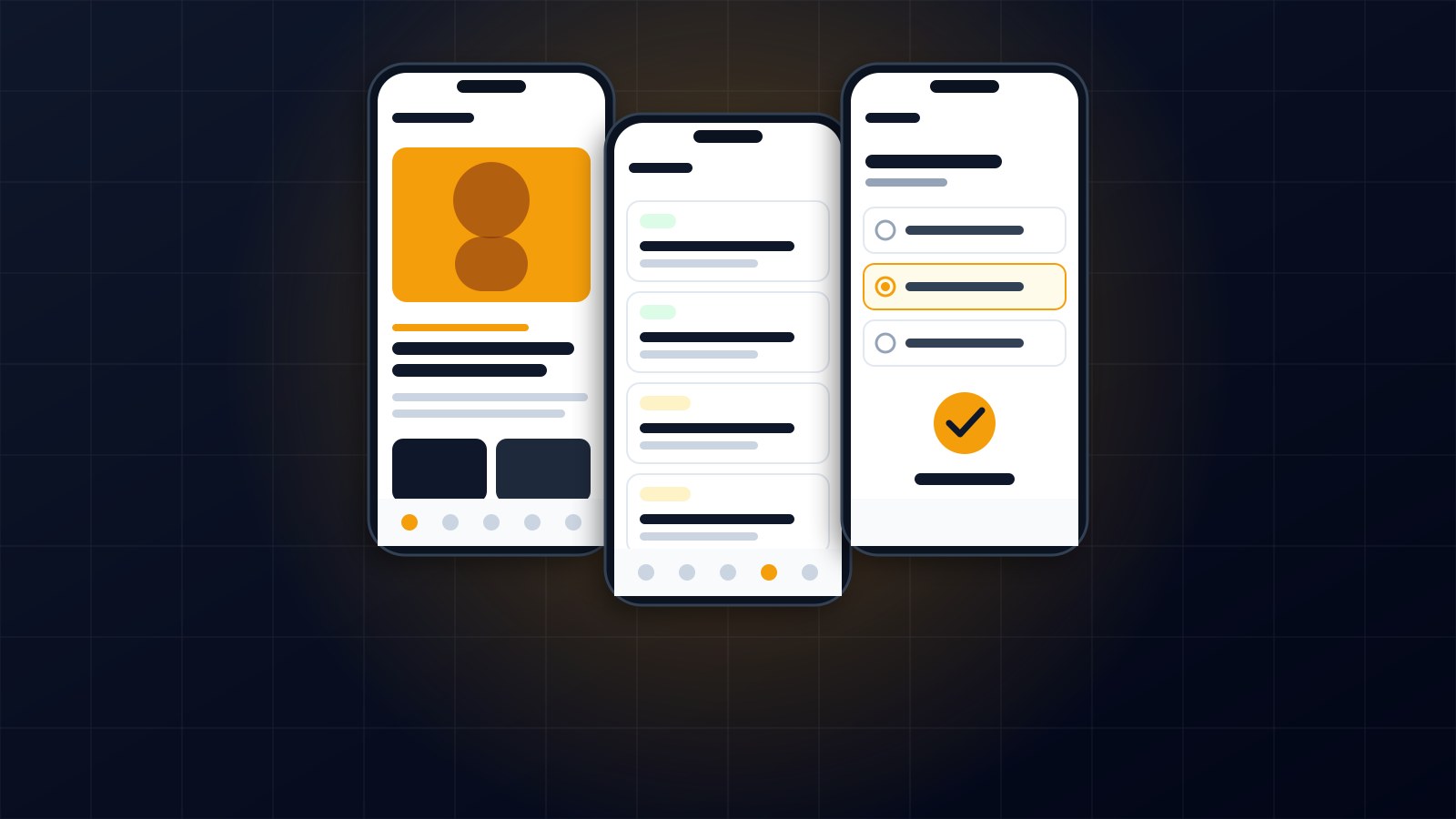
Discussion (0)
Sign in or create a free account to join the conversation.
No comments yet. Start the conversation.