Website Accessibility: How to Make Your Site Usable for Everyone
An accessible website is easier for everyone to use: people with poor eyesight, people using a phone in bright sunlight, people on slow connections and people who cannot use a mouse. Here are the simple fixes that matter most.

· 6 min read
Imagine trying to use a website with your screen at the lowest brightness, in bright sunlight, with a cracked screen and one hand free. Or reading a page when your eyesight is poor. Or filling in a form without being able to use a mouse. Or following a video with the sound off in a noisy place.
Almost everyone has been in a situation like this, even if only for a moment. Accessibility means designing websites so that they work for as many people as possible, whatever their abilities, devices or circumstances.
It is not a special feature for a small group. It is simply good design, and it helps your business as much as it helps your visitors. This post explains why it matters and gives you the practical fixes that make the biggest difference.
Who it helps
People with visual difficulties: poor eyesight, colour blindness, blindness. Many use larger text, high contrast or a screen reader, a tool that reads the page aloud.
People with hearing difficulties, who need captions or transcripts for video and audio.
People with limited movement, who may use a keyboard, voice control or other tools instead of a mouse.
People with learning or concentration difficulties, who benefit from clear, simple pages.
Older people, who often need larger text and simpler layouts.
Everyone else: someone on a cheap phone, a slow connection, in sunlight or in a hurry.
Why it matters for your business
It widens your audience. More visitors can read your offer, use your forms and buy from you.
It improves usability for everyone. Clear text, large buttons and simple navigation help all customers.
It helps search visibility. Many accessibility practices, such as proper headings and image descriptions, also help search engines understand your pages.
It reduces risk. In many countries, accessibility is increasingly expected, and sometimes required by law, especially for public services, schools and larger organizations.
It shows respect. A website that welcomes everyone reflects well on the business behind it.
Fix 1: Make text easy to read
Use a clear font in a comfortable size, usually at least the equivalent of 16 pixels for body text. Keep lines a reasonable length and leave enough space between lines and paragraphs. Avoid long blocks of text, and use short paragraphs and headings.
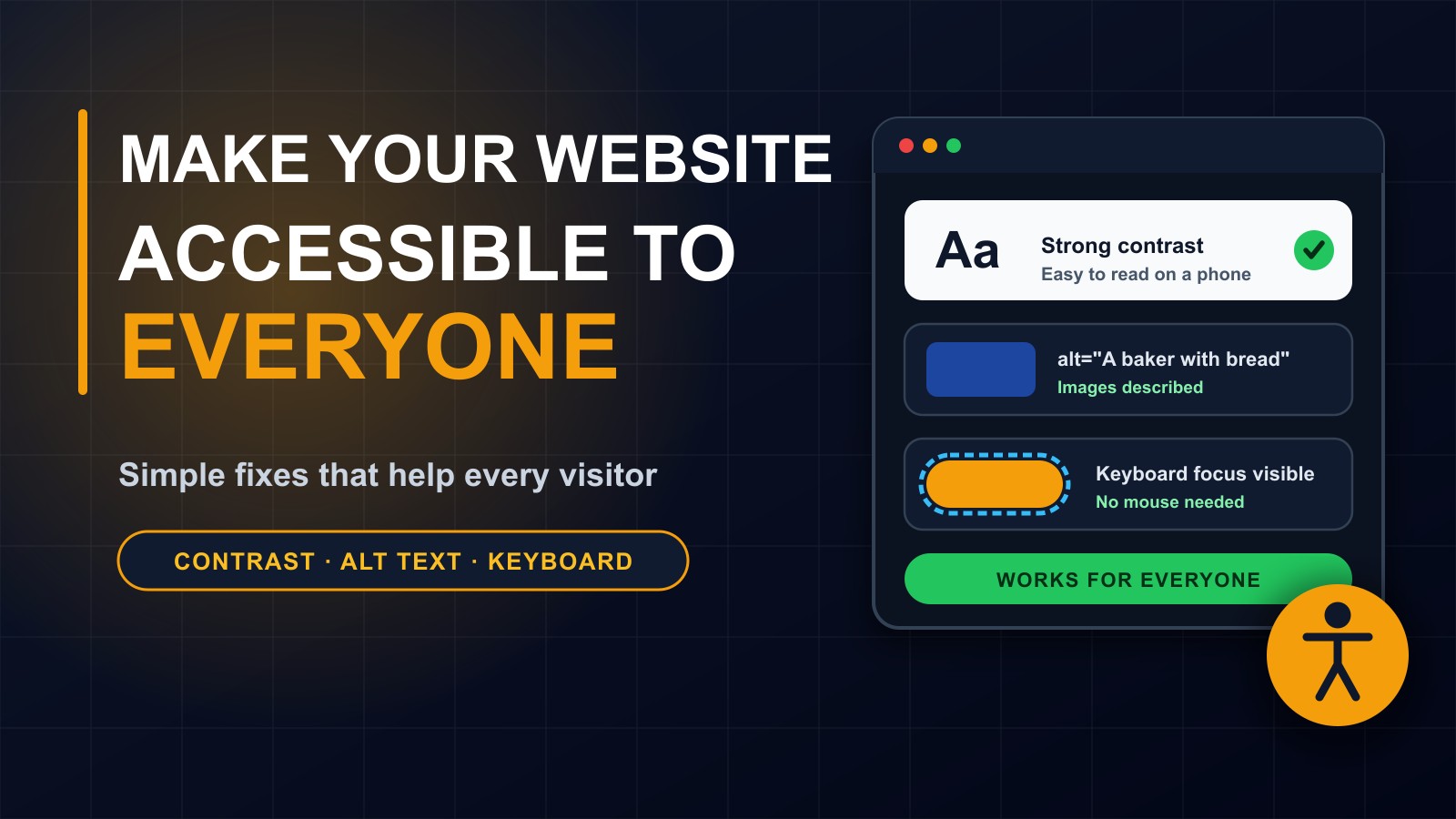
Make sure text has strong contrast against its background. Light grey text on white, or pale text over a busy photo, is hard for many people to read. The widely used guidelines, called WCAG, suggest a contrast ratio of at least 4.5 to 1 for normal text. Free contrast checker tools can test your colours in seconds.
Check that visitors can enlarge the text with their browser or phone settings without the page breaking.
Fix 2: Describe your images
Every meaningful image should have a short text description, called alt text, which a screen reader reads aloud and which appears if the image fails to load, for example on a slow connection. Describe what the image shows and why it matters: A baker holding a tray of fresh bread, not image1.jpg.
Purely decorative images can have an empty description so that screen readers skip them. If an image contains text, such as a poster, repeat that text in the description or in the page.
Fix 3: Do not rely on colour alone
Do not use colour as the only way to communicate. A form that marks errors only in red leaves colour-blind visitors guessing. Add a message, an icon or text, such as Please enter a valid phone number.
Fix 4: Make it work with a keyboard
Some people cannot use a mouse. Try this test: put your mouse aside and use the Tab key to move through your page. Can you reach every link, button and form field? Can you see which one is selected? Is the order logical?
Visible focus outlines are essential. If a developer has removed them for looks, ask for them to be restored, or replaced with something clearly visible.
Fix 5: Use headings and links properly
Headings are not just big text. They are the outline of your page. Use one main heading, then subheadings in order, so that people using screen readers can jump through the page like a table of contents.
Make link text meaningful. Read more repeated ten times tells a screen reader user nothing. Use Read our school management guide instead.
Fix 6: Label your forms
Every form field needs a visible label, such as Name or Phone, connected to the field properly. Placeholder text inside the box is not enough, because it disappears when you start typing. Explain required fields, give clear error messages and let people fix mistakes easily.
Fix 7: Provide captions and transcripts
For videos, add captions so people who cannot hear, or are in a quiet place, can follow. For podcasts and audio, offer a transcript. Avoid auto-playing sound, which is disruptive and confusing for many visitors.
Fix 8: Design for touch and small screens
Buttons and links should be large enough to tap easily, with space between them. Make sure the site works on a phone in portrait and landscape, and that nothing important is hidden. Avoid content that moves, flashes or disappears too quickly.
Fix 9: Keep it simple and predictable
Use consistent navigation across pages. Keep the layout clean, with one main action per page. Use plain language, short sentences and familiar words. Explain abbreviations and avoid jargon.
How to test your own site
You can learn a lot in fifteen minutes. Zoom the page to 200 percent. Use only the keyboard. View it on a phone outdoors. Turn off images to see whether the page still makes sense. Run a free accessibility checker, such as those built into browsers or offered online, and fix what it finds. Then ask a few real people, including older relatives and people with different abilities, to try to complete a task.
Automated tools find only some problems, so human testing matters.
Common mistakes
Low-contrast text. Missing or meaningless alt text. Removing focus outlines. Text inside images. Menus that only work with a mouse. Videos without captions. Forms without labels. Tiny buttons. Pop-ups that cannot be closed with a keyboard.
Build it in from the start
It is far cheaper to design accessibly from the beginning than to fix it later. When you brief a developer or designer, say that you want an accessible site, and ask how they will check it.
Let me help
I build websites with readable design, clear structure and mobile-friendly layouts, and I can review an existing site and list the fixes that would help most. Contact me through the contact page, or call or WhatsApp me on +231 777 810 466. And if you know someone building a website, share this post with them.
About the author
Francis Landford
Software Engineer | Creative Problem Solver | Innovative Software Solutions & Modern Applications
More about Francis Landford →