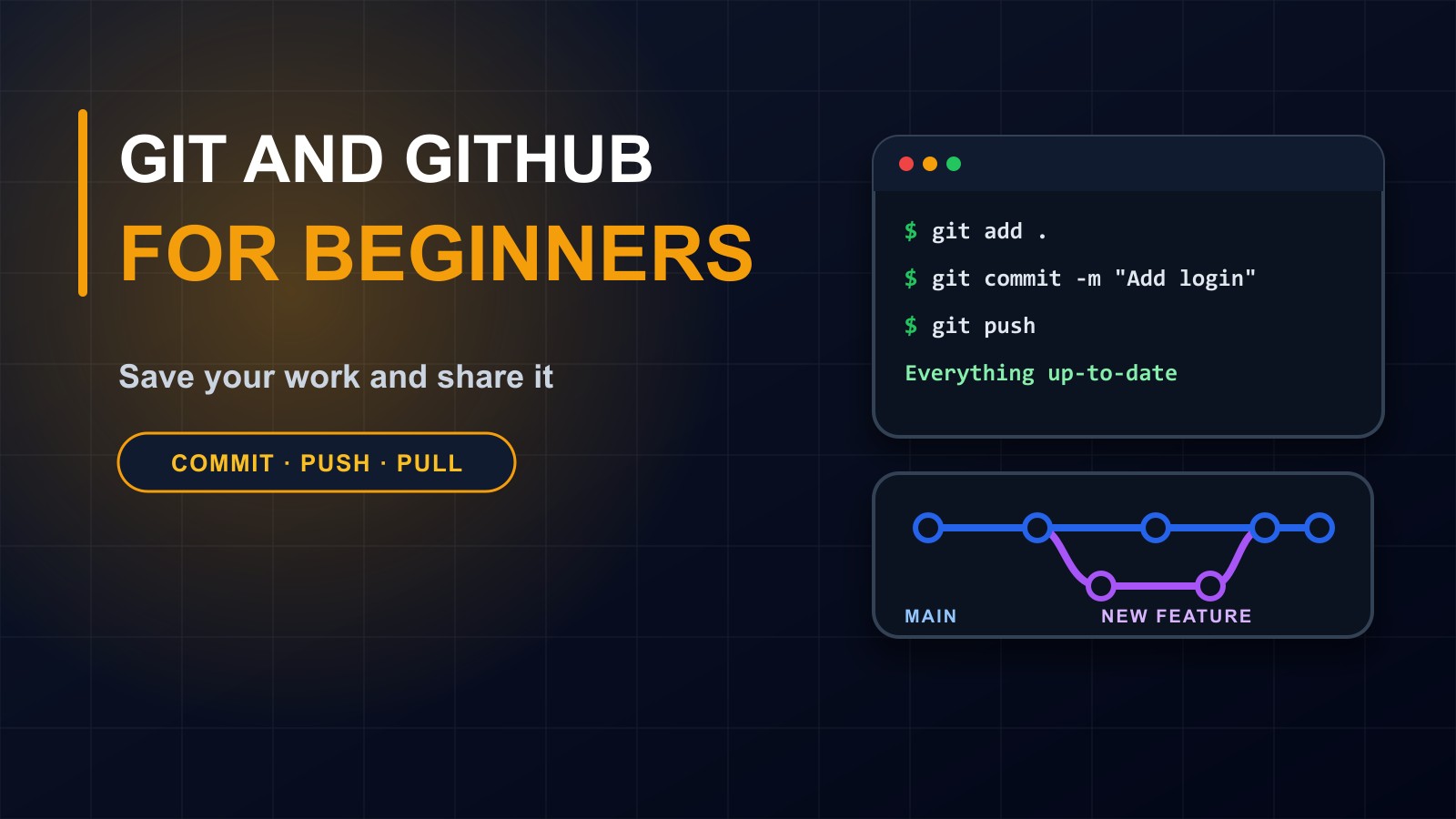
Git and GitHub for Beginners: Save Your Work and Share It
Git saves every version of your code so you can undo mistakes, work safely in teams and show your projects to the world. Here is a beginner-friendly guide to the basic commands, a daily workflow and the mistakes to avoid.

· 6 min read
Imagine writing an important document and saving copies called final, final2, final-really-final and final-use-this-one. Now imagine ten people doing that to the same document at the same time. It would be chaos.
Programmers faced this problem long ago, and the solution is a tool called Git. It records every change to your project, lets you go back to any earlier version, and lets many people work on the same code without overwriting each other. GitHub is a website where you can store your Git projects online, share them and collaborate.
This post explains the basics for beginners: what the main ideas mean, which commands to learn first and a safe daily routine.
Git and GitHub are not the same thing
Git is a tool that runs on your computer. It tracks changes in your project folder.
GitHub is an online service that stores copies of Git projects, and adds features for sharing, reviewing and collaborating. Similar services exist, and they all work with Git in the same way.
You can use Git without GitHub, but together they make your work safer, shareable and visible.
Key ideas in plain language
A repository, or repo, is a project folder that Git is tracking, including its full history.
A commit is a saved snapshot of your project at a moment in time, with a short message describing what changed. Think of it as a save point in a game.
A branch is a separate line of work. You can try a new feature on a branch without affecting the main version, and combine them when it works.
A remote is a copy of the repository stored somewhere else, such as GitHub.
Push sends your commits to the remote. Pull brings new commits from the remote to your computer. Clone makes a full copy of a remote repository on your machine.
Setting up
Install Git from its official website. Then tell Git who you are, once, using your terminal:
git config --global user.name "Your Name"
git config --global user.email "you@example.com"
Create a free account on GitHub. For safety, use a strong password and turn on two-step login. You will also set up a way to sign in from your computer, such as a personal access token or a secure key, following GitHub's instructions. Never share these with anyone.
Your first repository
Open your terminal, go to your project folder and run:
git init
This starts tracking the folder. Check what Git sees with:
git status
New files appear as untracked. To include them in your next snapshot, add them:
git add .
The dot means everything in the folder. Then save the snapshot with a message:
git commit -m "Add home page"
You have made your first commit. As you keep working, repeat: change files, add, commit.
See your history with:
git log --oneline
Send it to GitHub
On GitHub, create a new, empty repository. It will show you the web address. Connect your local project to it and send your commits:
git remote add origin https://github.com/your-name/your-project.git
git branch -M main
git push -u origin main
From now on, after committing, you can simply run git push.
If you are working on a copy that already exists on GitHub, use git clone with its address to download it, and git pull to bring in the latest changes.
Branches: try things safely
Create a branch for each new feature or fix:
git switch -c add-contact-form
Work and commit as usual. When it is ready, return to the main branch and merge:
git switch main
git merge add-contact-form
If something goes wrong, you can delete the branch and the main version stays safe. On GitHub, many teams use pull requests: you push your branch, ask others to review it and merge it through the website.
Keep secrets and clutter out: .gitignore
Some files should never be saved in Git: passwords, access keys, configuration files with secrets, large downloaded libraries and temporary files. Create a file named .gitignore in your project and list them, one per line, for example:
.env
node_modules/
vendor/
If you accidentally commit a password or key, do not just delete it in a later commit, because it remains in the history. Change the password or key immediately, and then clean up the history with help if needed. This is one of the most common beginner mistakes, and criminals scan public repositories for exposed secrets.
Write good commit messages
A commit message should say what changed and why, in a short sentence: Fix login error when email has capital letters. Avoid messages like stuff, changes or asdf. Good messages make your history a useful story, for you and for anyone who reads your work.
Commit small and often. Each commit should do one thing.
Undoing mistakes
Git is forgiving. To discard changes you have not committed in one file, you can restore it:
git restore filename
To see what changed before committing, use:
git diff
To undo a commit that is already shared, create a new commit that reverses it:
git revert COMMIT-ID
Be careful with commands that rewrite history, especially on shared branches. When unsure, ask someone or search before you run them.
A simple daily workflow
Start the day by pulling the latest changes. Create a branch for what you are working on. Make small changes and commit them with clear messages. Push your branch regularly, so your work is backed up. When the feature works, merge it or open a pull request. Delete finished branches.
Make your GitHub profile work for you
Employers and clients look at GitHub. Pin your best projects. Give each project a clear README with a description, screenshot and instructions, as I describe in my post on building a developer portfolio. Keep your commit history tidy, and be honest about what is your own work.
Common mistakes
Committing passwords and keys. Working directly on the main branch with no safety net. Giant commits that mix many changes. Unclear commit messages. Forgetting to pull before pushing, which causes conflicts. Panicking at merge conflicts, which are normal: Git simply asks you to choose which version to keep.
Practise
Create a small project, such as a one-page website. Initialise Git, make five commits, create a branch, change something, merge it and push everything to GitHub. Doing it once with a tiny project teaches more than reading about it ten times.
Learn the foundations
My free courses at francislandford.com/e-learning teach the web basics, HTML, CSS and JavaScript, which you can use as your first projects to track with Git.
Need guidance?
If you are learning to code and want feedback on your first repositories, I am happy to help. Contact me through the contact page, or call or WhatsApp me on +231 777 810 466. And if you know a student who still saves files as final-v7, send them this post.
About the author
Francis Landford
Software Engineer | Creative Problem Solver | Innovative Software Solutions & Modern Applications
More about Francis Landford →